About TDF Scholarship Manager


TDF Scholarship Manager is The Denver Foundation’s centralized scholarship portal. Students use it to submit applications, view the full list of available scholarships, and monitor their application status. Evaluators log in to the same portal to access and review submitted applications.

Go To TDF Scholarship Manager

Create an Account


Creating an account on TDF Scholarship Manager is a multi-step process.

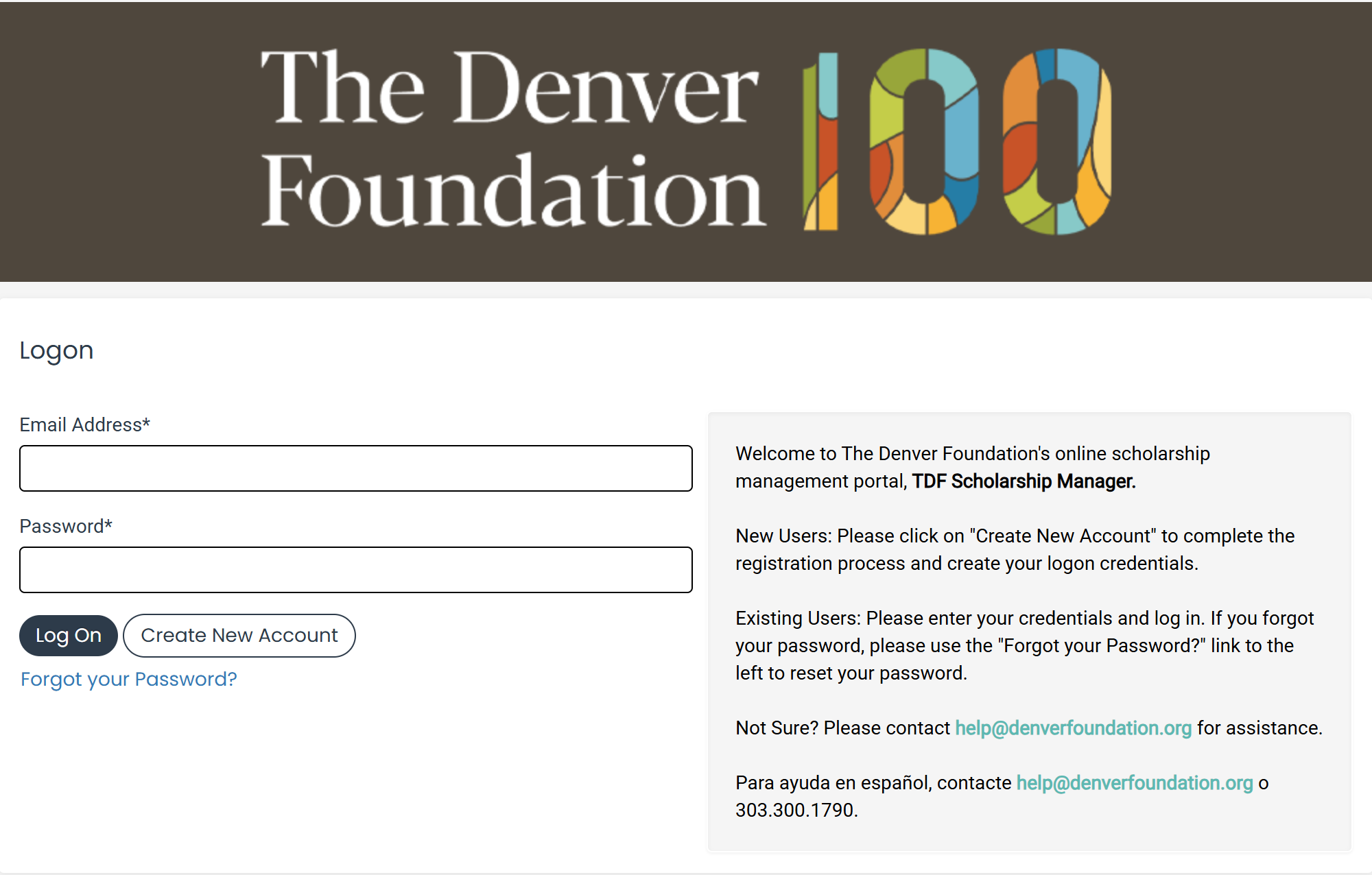
  1. Visit TDF Scholarship Manager logon page.
  2. Click the “Create New Account Button.”
  3. You will be prompted to enter your personal information, including your email address which will as as your Username to access TDF Scholarship Manager in the future. Be sure to pick an email address you frequently check and will have indefinite access to.
  4. After you’ve entered in your User information, click the “Next” button to add a password.
  5. Confirm the email address you have used to successfully create your account.

View a walkthrough video of how to create an account provided by Foundant Technologies.


Screenshot 2025 12 05 134944

Navigate the Applicant Dashboard


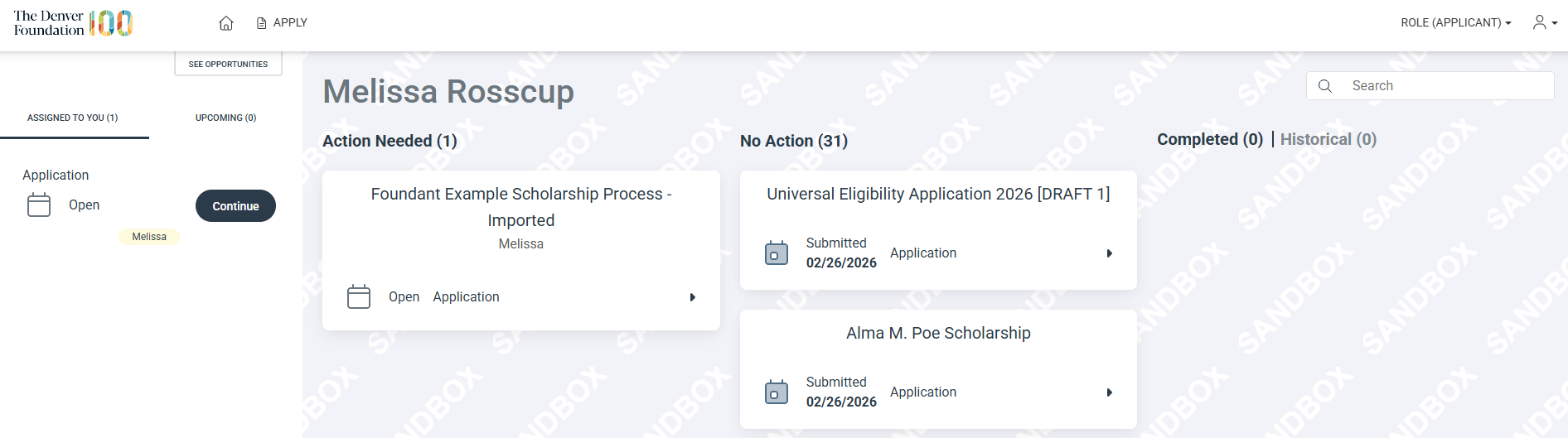
Upon confirming your email address and creating your TDF Scholarship Manager account, log into the portal. Initially, you will be shown your “Applicant Dashboard”, which you can return to from any point by clicking the house icon at the top of the page.

On the Applicant Dashboard page, you are able to review your contact information and all active and historical scholarship applications. If your information is incorrect, you can correct it during the application process or email help@denverfoundation.org for assistance.

View a walkthrough video of the Applicant Dashboard provided by Foundant Technologies.

Apply for a Scholarship


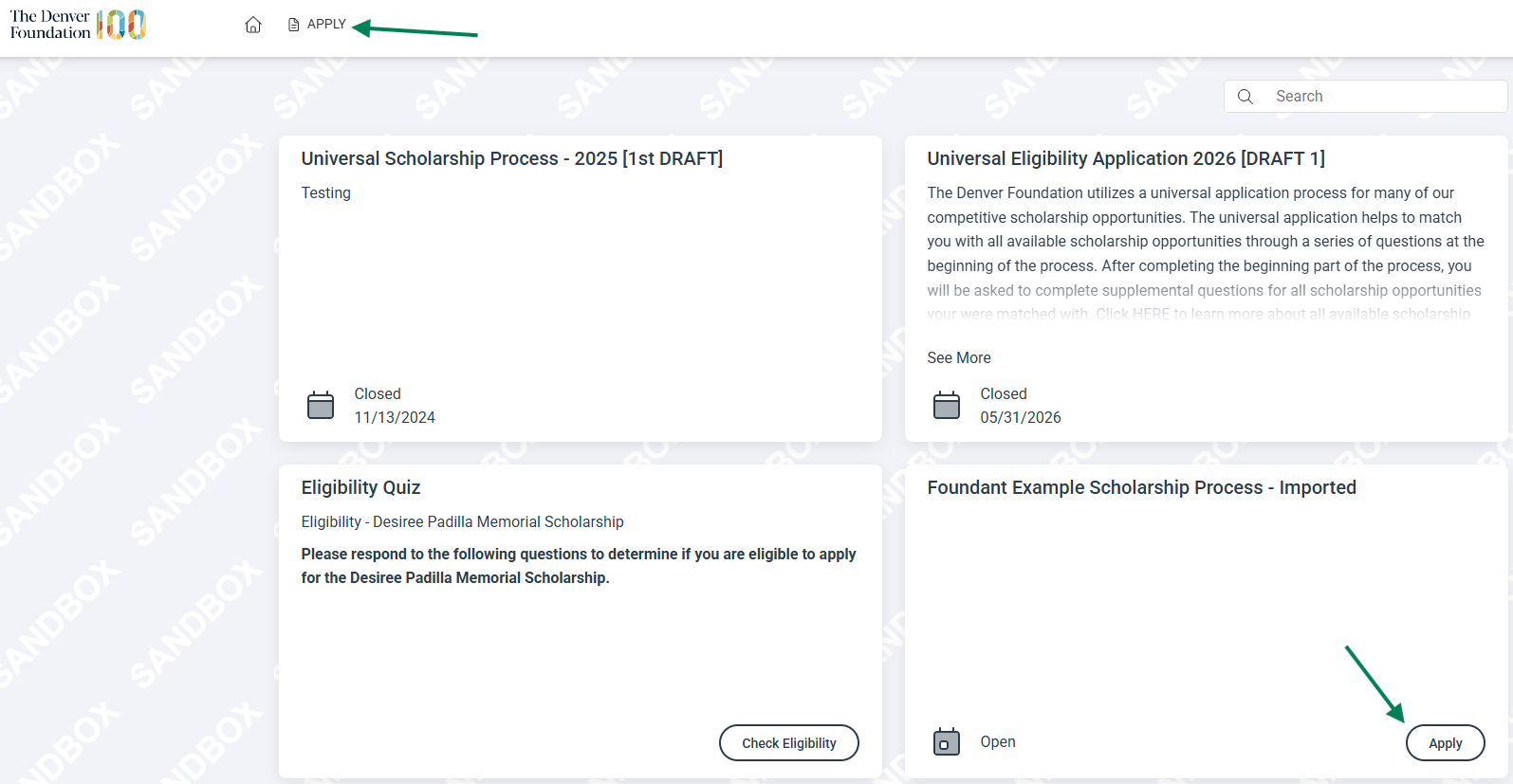
Upon logging in to your TDF Scholarship Manager account, you will see the option “Apply” at the top of the page. On this page, you will see any open scholarship opportunities listed under the “Quick Search” bar. This page will also show you any relevant deadlines and other applicable information related to them.

You can preview an application without having to complete any work by clicking on the “Preview” button.

Completing an Application

  • If the form has a specific deadline it will be listed at the top of the form, to the left of the blue “Apply” button.
  • To begin filling out an application, click the blue “Apply” button in the top right corner of any open scholarship opportunity, clicking this button will take you into a form to complete and submit. Upon initiating an application, you assume the user role of “Applicant.”
  • Once in the form, your contact information automatically populates at the top of the form.
  • Please note that any fields with an asterisk are required fields and must be completed prior to submitting an application.
  • As you complete the form, the system will auto-save every 100 characters typed or every time you click out of a field.
  • File upload fields will only accept one file, per field.
  • Upload fields have stated size limits.
  • Upload fields may also have stated file type restrictions.
  • Once a file has been uploaded, it may be deleted by clicking the red “X” next to the file name and a new file can be uploaded.
  • When all the fields are complete, submit the application.

Submitting an Application

  • If any required fields were not completed, or a response to a text question type is longer than the set limit, the system will not allow the form to be submitted.
  • An error message appears listing the fields that need to be completed or edited, these fields are outlined in red so they are easy to identify as the applicant scrolls through the form.
  • When a form is submitted successfully, the Applicant will be taken to a confirmation page.
  • Please note, once an application has been submitted you can no longer edit it.

View a walkthrough video of submitting an application provided by Foundant Technologies.

View a walkthrough video of submitting a universal application, provided by Foundant Technologies.

TDF Scholarship Manager Evaluator Guide


Evaluators include anyone who will be reviewing and scoring scholarship applications. The following are general instructions about how to create an account, sign into the portal, and evaluate applications. If you have additional questions about your fund or applications specifically, please contact your designated staff person at The Denver Foundation. If you have technical questions about the portal or issues logging in, please contact our front-line support team at help@denverfoundation.org 

  1. Go to TDF Scholarship Manager: https://www.grantinterface.com/Home/Logon?urlkey=denverscholarship 
    1. If you have never signed into TDF Scholarship Manager before: 
      1. Sign in with your email (the email you have provided to TDF) and use the temporary password you received in the email from your relationship manager.
      2. Immediately change your password when prompted. 
    2. If you have signed into TDF Scholarship Manager previously: 
      1. Sign in with your email and password. 
  2. On the Evaluation Dashboard, select the “Your Evaluations” tab.

Slm Evaluator Dashboard New

    3. Evaluation status key:

    1. Green bar/ green check icon: Evaluation has been completed – You can edit your evaluation until the evaluation window closes.
    2. Orange bar/ orange exclamation icon: Evaluation has been started, but is not complete – You can edit your evaluation until the evaluation window closes.
    3. Red bar/ red exclamation icon: Evaluation has not been started – You can edit your evaluation until the evaluation window closes.

Slm Evaluation Statuses New 

    4. Click the red exclamation point to begin evaluating a specific scholarship application.

    1. You might sign in before scholarship applications have been assigned to you – If you don’t see any applications available for review, they might not be available yet. Your staff person at The Denver Foundation will alert you when applications are ready for evaluation.

    5. Complete Evaluation Form in side-by-side view. (Your evaluation will be on the left, the scholarship application will be on the right).
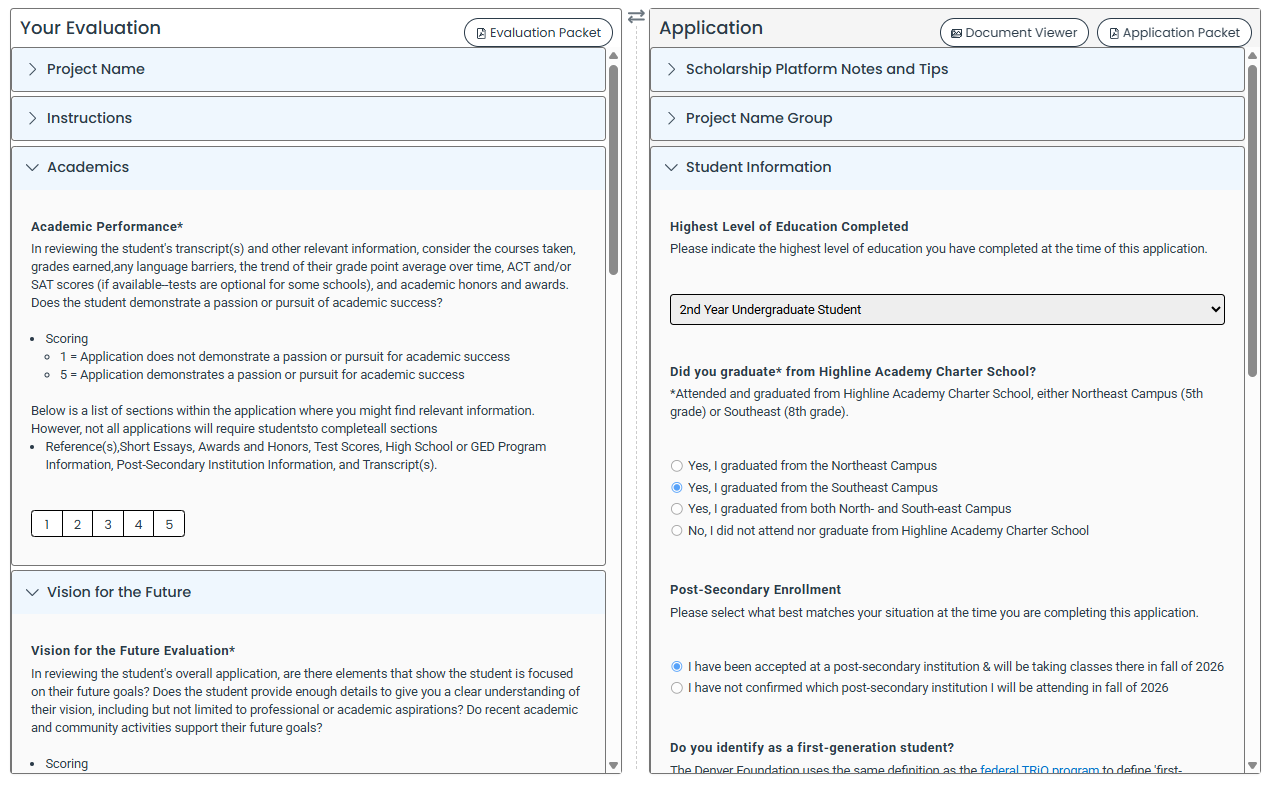
    6. Remember to save as you go to avoid losing work – You can pause during the evaluation and return to it later.

    7. Note: There is no “submit” button once you complete your evaluation. As long as you “save” and complete all required questions in the evaluation form, your evaluation will be considered “complete.”

    1. Saved evaluations will continue to be available until the evaluation window has closed. Don’t be confused by still seeing evaluations you have already submitted – This is intentional (Refer to Evaluation Status Key above.)

View a walkthrough video of completing an evaluation, provided by Foundant Technologies.